
Working with Text
Distortable Text
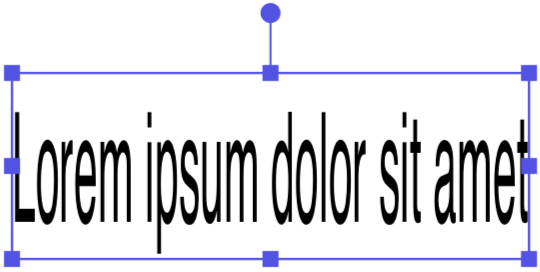
Adding Text
To add a text box:
- Activate the Text tool
 in the Tools panel.
- Tap the canvas.
- Type in or paste new text.
To exit the text editing mode, activate the Move or other tool.
Editing and Formatting Text
To edit text in your document, double-tap it with the Move or Selection tool. Alternatively, you can start editing text by tapping it with the Text tool. The built-in text editor provides basic capabilities for editing and formatting text.
When you add or remove a portion of text, the text box resizes automatically to hold the present amount of text.
Apart from the text itself, you can change its font, color and other properties as described in the Properties of Text section.
Distorting Text
You can squeeze or stretch text by changing the width or height of the text box with the Move tool. To do that, drag its side or corner handle. Text won't wrap to another line when the amount of space inside the text box decreases or increases. Instead of that, the size of characters changes to make the text fit the currently available space.
To resize text preserving the current aspect ratio, touch and hold one finger on the screen while dragging a corner handle of the text box with another finger. Or activate the corresponding mode  in the Action bar.
Modifying the Boundary
To resize or rotate the boundary, drag the corresponding corner or side handle as explained in the Move, Resize and Rotate Objects section.