
Working with Text
Text Inside a Shape
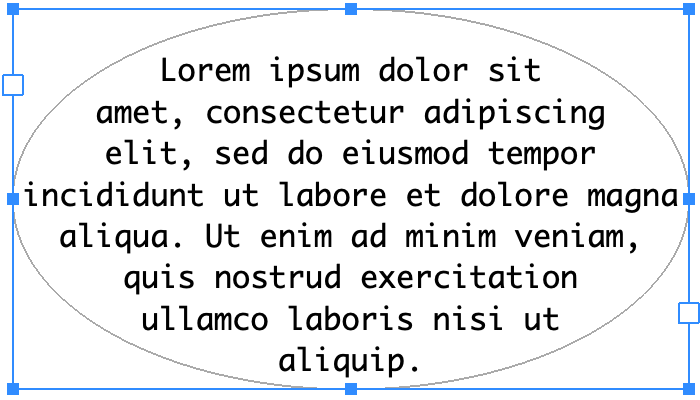
Adding Text
We assume that a shape (either closed or open path) is already present in your document.
To add text inside a shape:
- Activate the Text tool
 in the Tools panel.
- Tap on the shape. The app will display a text editor containing the default text.
- Type in or paste new text.
To exit the text editing mode, activate the Move or other tool.
Note that properties of the original path, such as stroke, fill or effects, will not be preserved after adding text inside the shape.
Editing and Formatting Text
To edit text in your document, double-tap it with the Move or Selection tool. Alternatively, you can start editing text by tapping it with the Text tool. The built-in text editor provides basic capabilities for editing and formatting text.
Apart from the text itself, you can change its font, color and other properties as described in the Properties of Text section.
Modifying the Boundary
To resize or rotate the boundary, drag the corresponding corner or side handle as explained in the Move, Resize and Rotate Objects section.
You can modify the boundary of your text as a path with the Selection or Pen tool.