
Changing Object's Shape
Rounding Corners
Corners of shapes (e.g., rectangles) can be turned into rounded corners. The most convenient way to create objects with rounded corners is to use the features described below.
Rounded Corners in Smart Shapes
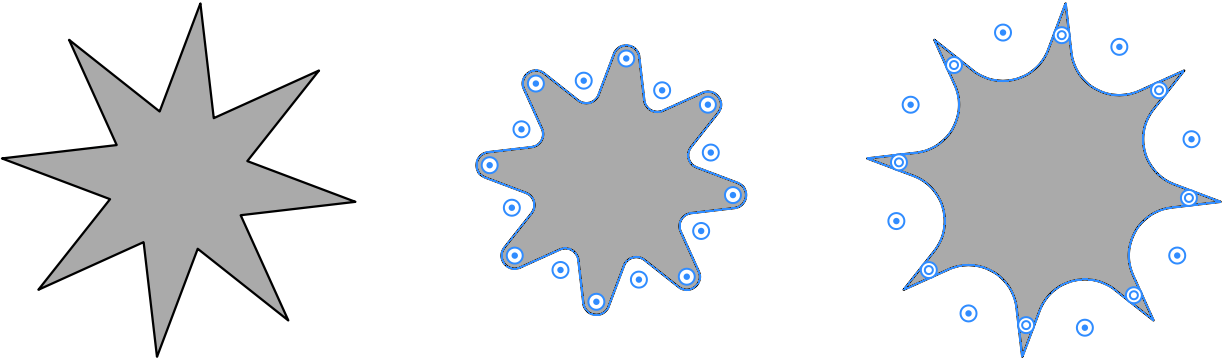
Smart Shapes are objects that are created using specialized tools. If you select a Smart Shape with the Selection tool, the Action bar will let you set the radius and select the shape of the corner in the popup panel.
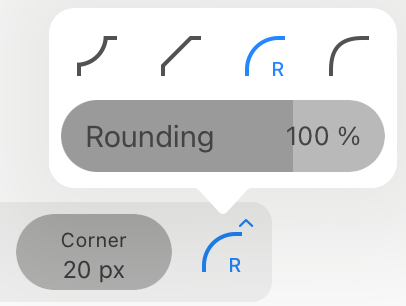
Refer to the following subsection for details.
Rounding Corners in Arbitrary Paths
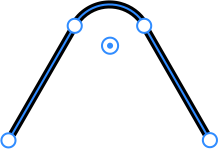
When a path is selected and the Selection or Lasso tool is activated, the app displays handles near corner points. In order to create a rounded corner, move the handle.
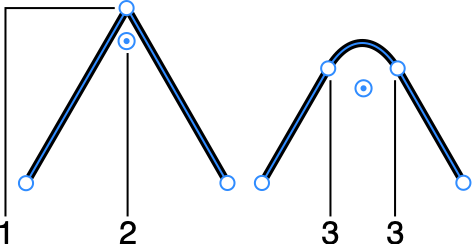
1 - Corner point.
2 - Corner rounding handle.
3 - Points that create a rounded corner.
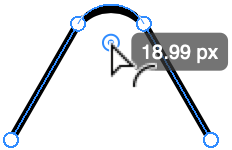
As soon as you drag the handle off its original position, the corner radius will start increasing. The corner radius is displayed in a popup panel while you are dragging the handle. You can also see and edit the value of the radius in the Corner edit box.
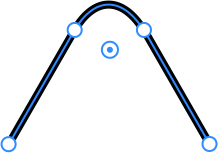
If a path or Smart Shape was selected using the Selection tool, you can adjust radiuses of all corners by moving just one corner handle. This is possible because all of the handles become selected by default. In order to adjust only particular corners, you should select the corresponding handles. To select or deselect several handles individually, tap them holding another finger on the screen. A second way to select or deselect multiple handles is to activate the Add to Selection mode  in the Action bar and then tap the handles with the Selection tool. The selected and deselected handles have different colors in the center.
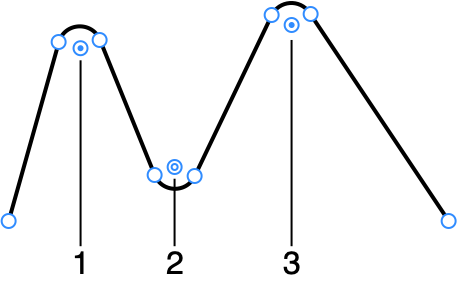
1 and 3 - Selected corner handles.
2 - Not selected handle.
When the handles aren't visible, you still can adjust the corner radius using the Action bar.
Changing the Bevel Shape
By default, a rounded bevel is created. This concerns arbitrary paths as well as Smart Shapes. To select a different bevel type, use the Action bar.
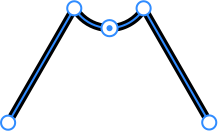
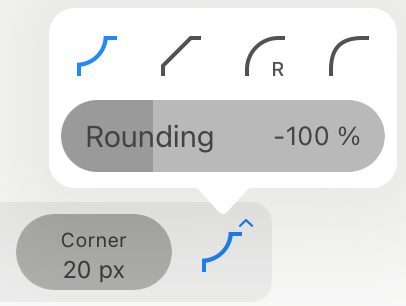
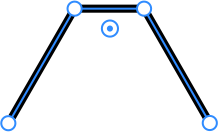
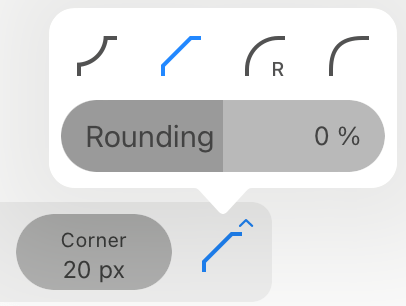
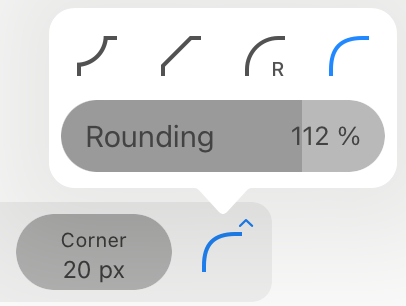
The slider below the presets lets you set intermediate values.
Modifier Keys Summary
With an external keyboard, you can use the following modifier key.
Selection tool modifier key:
- Shift-tapping lets you select or deselect multiple handles to adjust the radius of particular corners.