
Drawing
Stroke
You can apply one or multiple strokes to a path using the Appearance panel. For a complete description of the panel's interface, refer to the Appearance Panel section.
To open or hide the Appearance panel, To open the panel, tap the corresponding icon in the main window.
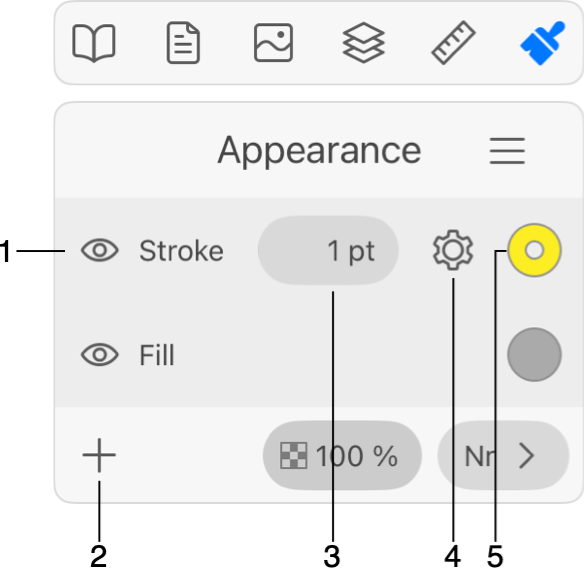
1 - Strokes are listed in the Appearance panel among other properties.
2 - Add stroke.
3 - Stroke width.
4 - Open stroke properties.
5 - Stroke color. Tapping this button opens the Color panel.
The Opacity and Blend Mode parameters are the same as you can find in the Layers panel.
Add and Delete a Stroke
Before adding or deleting a stroke, you should select a path in your design.
To add a stroke, tap the plus icon and choose Stroke.
To delete a stroke, select it in the Appearance panel. Then slide over its name to the left. Then tap the trash bin icon.
It is possible to hide a stroke without actually removing it. To do this, use the respective eye icon in the Appearance panel.
Properties of a Stroke
The Appearance panel gives you direct access to the width and color of strokes. The Color panel is described in the Color Panel section. To access all available properties, tap the gear icon.
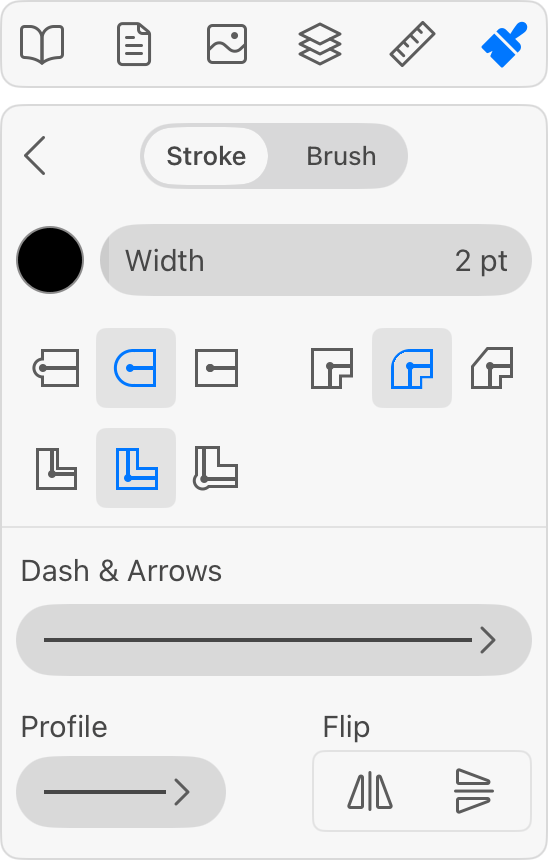
The Width parameter is the same as the width you can set in the Appearance panel.
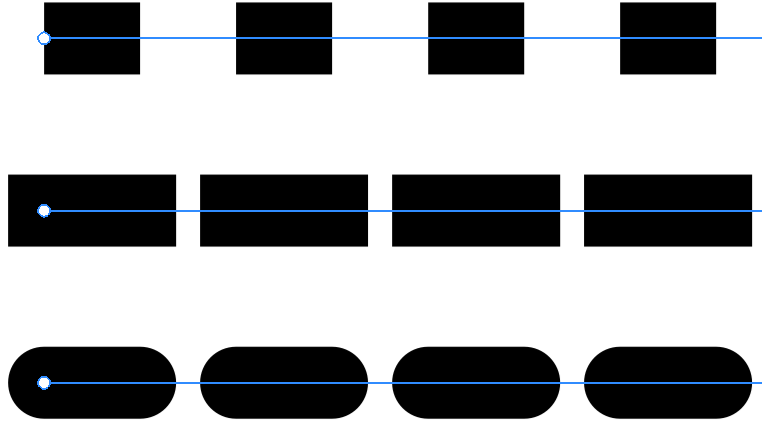
The Cap options 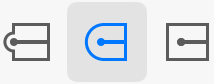 define whether the stroke should end where the path ends, or it should go a half-width farther. In the second case, you can choose if the stroke should be rounded. The option applies to a solid line as well as to individual elements of dashed or dotted lines.
The Corner options 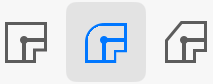 let you select how the stroke looks at corners. You can make it sharp, rounded or clipped.
The Align options 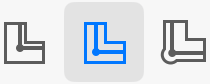 let you align a stroke to the center of the path, or outside or inside of the shape. Notice that the alignment options can work only with closed paths.
The following set of controls lets you create dashed and dotted lines.
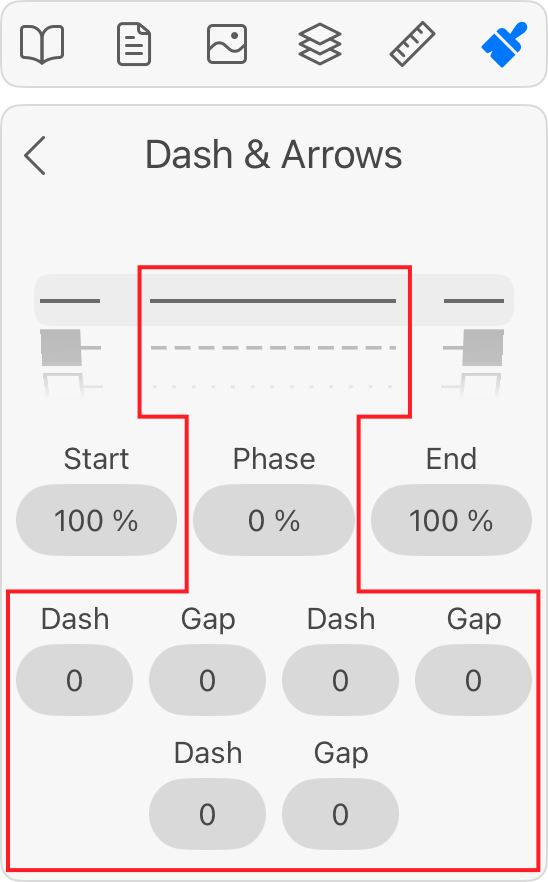
At the top, there are patterns that have different combinations of dots and dashes.
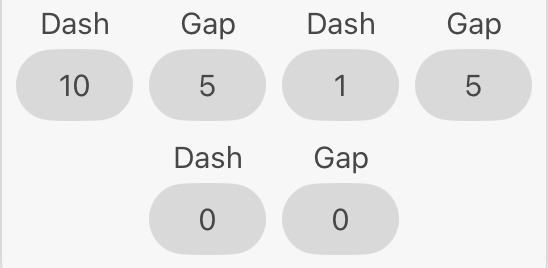
Any dashed line can be described as a sequence of dashes and gaps of a particular length. So, in order to create your own pattern, you can fill in the Dash and Gap fields. For example, to create a pattern like "long dash - gap - dot - gap", you can type in 10 - 5 - 1 - 5 starting from the leftmost dash field.

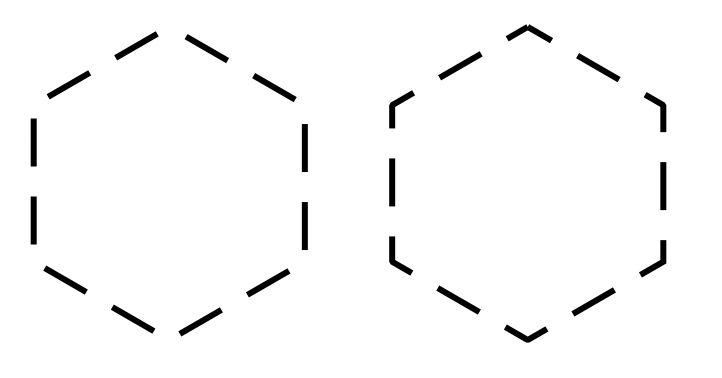
The Phase parameter moves the pattern along the path. With this slider, you can place dashes at corners of your shape or align the pattern to other features of the path.
The two pairs of identical controls let you add arrowheads or other elements to a Stroke at the path ends.
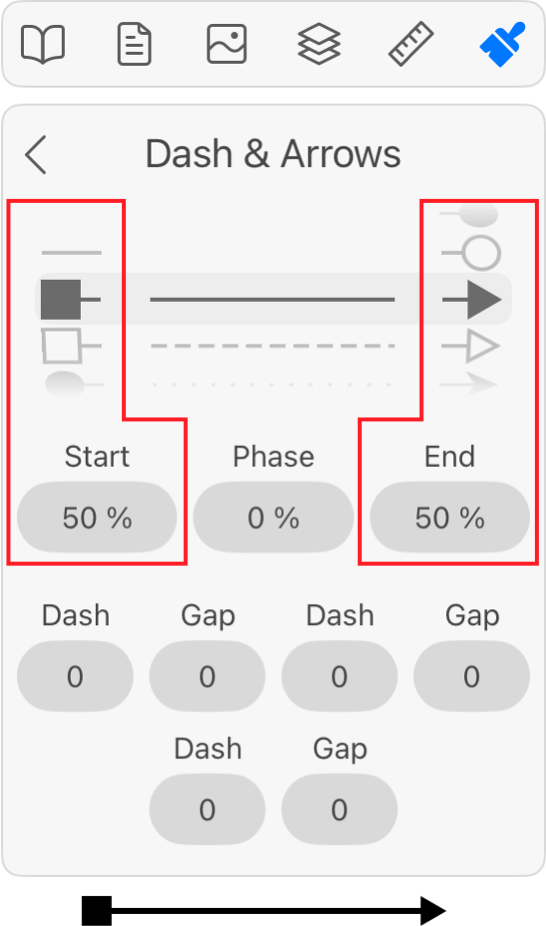
To add an arrowhead to a Stroke, choose a pattern. In order to adjust the arrowhead's size, change the numeric value below the corresponding pattern. Arrowheads and dashed patterns are supported only with the Uniform profile. They will not be applied to the Stroke if you choose a variable-width profile.
You can change the profile of a Stroke using the Profile button in the Appearance panel. It defines how the stroke width changes along the path.
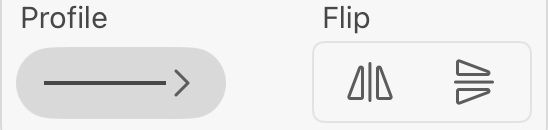
By default, strokes have the Uniform profile that creates lines with constant width. However, there are other options as well. For example, the stroke width can gradually change from max to min value along the path.
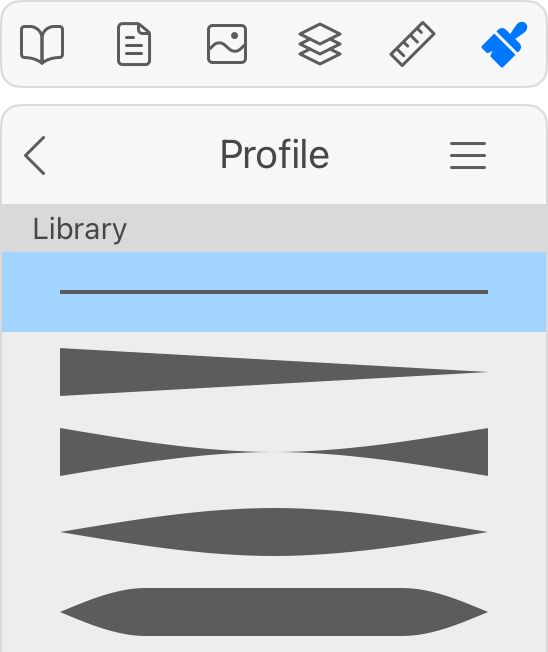
You can add your own profile to the list if you wish to reuse it. To do this, you create a new profile. Bring up the list of profiles. Tap the menu icon to the right from the panel's title and choose Add. To delete a custom profile from the list, select this profile and tap Remove in the menu.