
Drawing
The Appearance Panel
The Appearance panel lets you manage the object's Fill, Stroke and other effects. To open the panel, tap the corresponding icon in the main window.
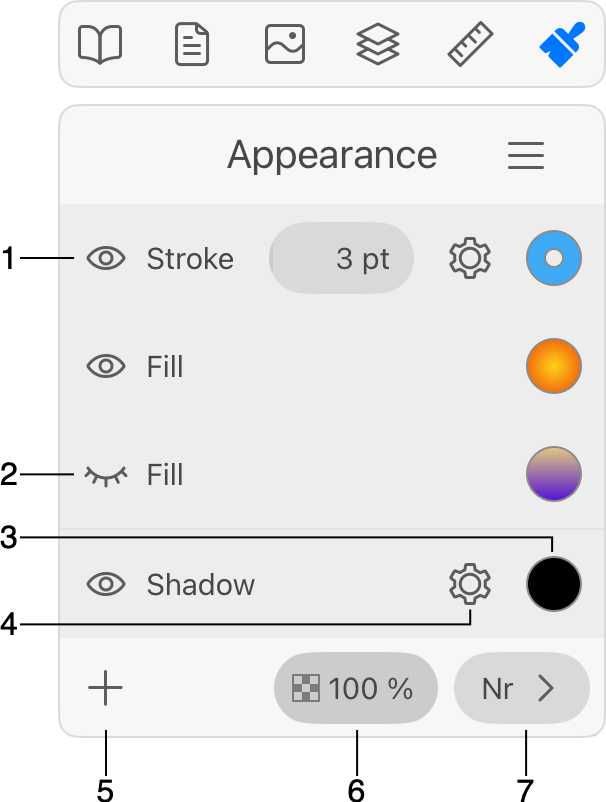
1 - Each line contains one effect, such as Stroke or Shadow.
2 - Hide or show an effect. Hide an effect to remove it from the design but still have the ability to easily re-apply it again.
3 - Change the color.
4 - Show a panel with the effect's settings. Some of the settings, such as the color or stroke width, can be accessed from the Appearance panel directly.
5 - Add an effect. You can choose from a list of all supported effects: Fill, Stroke, Overlay, Mask, Inner Glow, Outer Glow, Inner Shadow, Shadow and Blur.
6 - Opacity of the object.
7 - Blend mode of the object.
Menu Commands
By tapping the menu button  , you can access these commands:
- Add Fill adds a new Fill effect.
- Add Stroke adds a new Stroke.
- Add Overlay adds an Overlay.
- Add Mask adds a Mask.
- Add Effect opens a list of raster effects as Shadow and Glow.
- Copy Style copies the style of the selected object.
- Paste Style applies a copied style to a selected object.
- Reset All Properties restores the default object's Fill and Stroke and also removes all of the customized properties.
- Swap Stroke/Fill swaps the colors of the object's stroke and fill.
Delete an Effect
To delete an effect, slide over its name to the left. Then tap the trash bin icon.
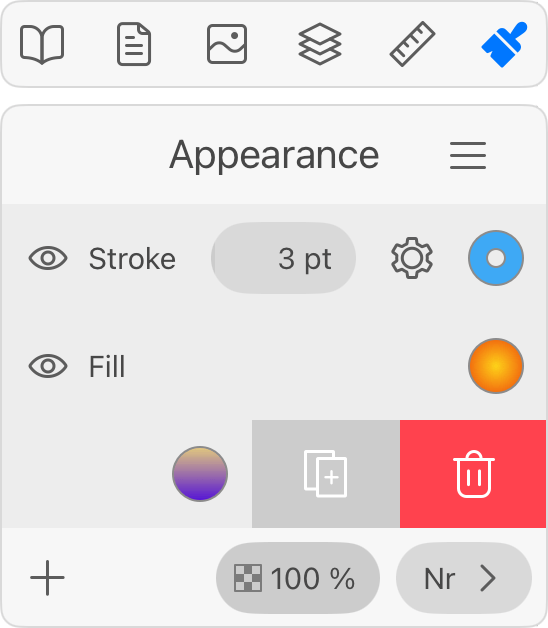
Duplicate an Effect
To duplicate an effect, slide over its name to the left. Then tap the duplicate icon.
Changing the Order of Effects
Effects in the Appearance panel are ordered in the same way as they were applied to an object.
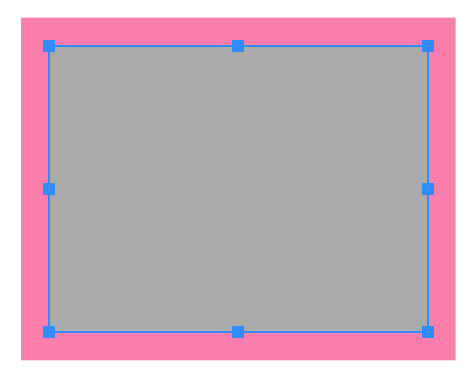
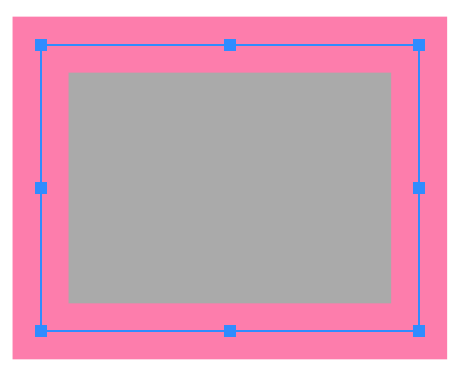
The arrangement of effects atop one other defines how the object looks on the canvas. Two rectangles below have identical paths, stroke and color fill. The only difference is that the left one has the stroke below the fill. The rectangle on the right has the opposite order of effects. As you can see, when the stroke is behind the color fill, half of the stroke width is invisible, making it look two times thinner.
To change the order of effects, drag one to a new position.
The ability to place certain properties or effects above or below others in the list depends on their type. These types are presented in the Appearance panel as sections separated with lines. Let's take a text object as an example. The panel has separated all properties into three sections.
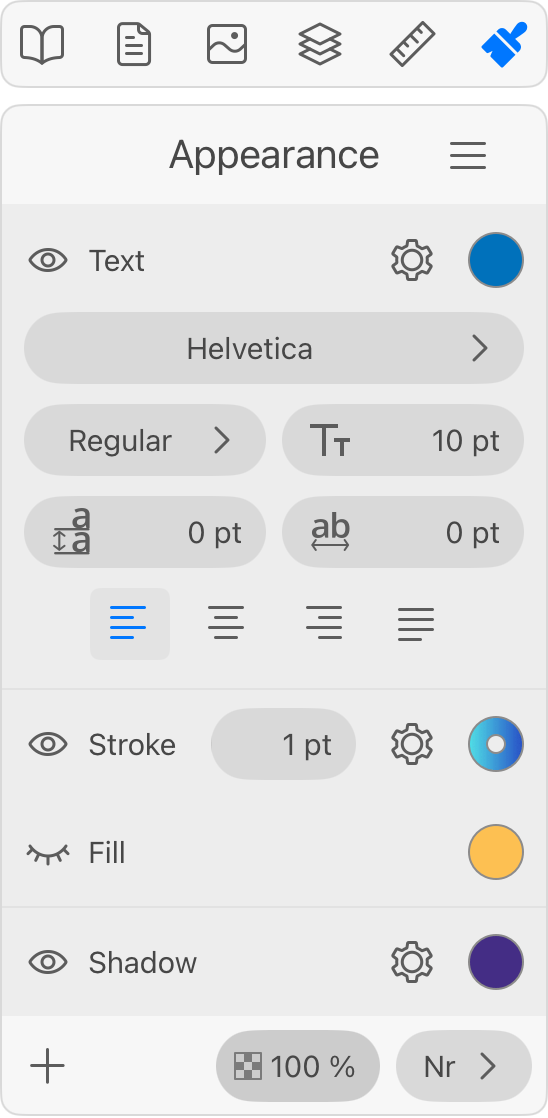
The Text entry always occupies the top of the list. The section in the middle can contain only Fill, Stroke, Gradient, Brush or Image entries in any order. The lower section is for Inner Glow, Outer Glow, Inner Shadow, Shadow or Blur. You can rearrange properties within their own section, but placing them into another section is not possible.
The Style of an Object
Any object in your design has particular effects set up in a certain way. We call such a combination of effects "style".
In order to apply exactly the same style to a second object, you can copy this style. To do this, select the first object and choose Copy Style from the menu of the Appearance panel. Then select the second object and use the Paste Style command.