
Creating Effects
The Overlay Effect
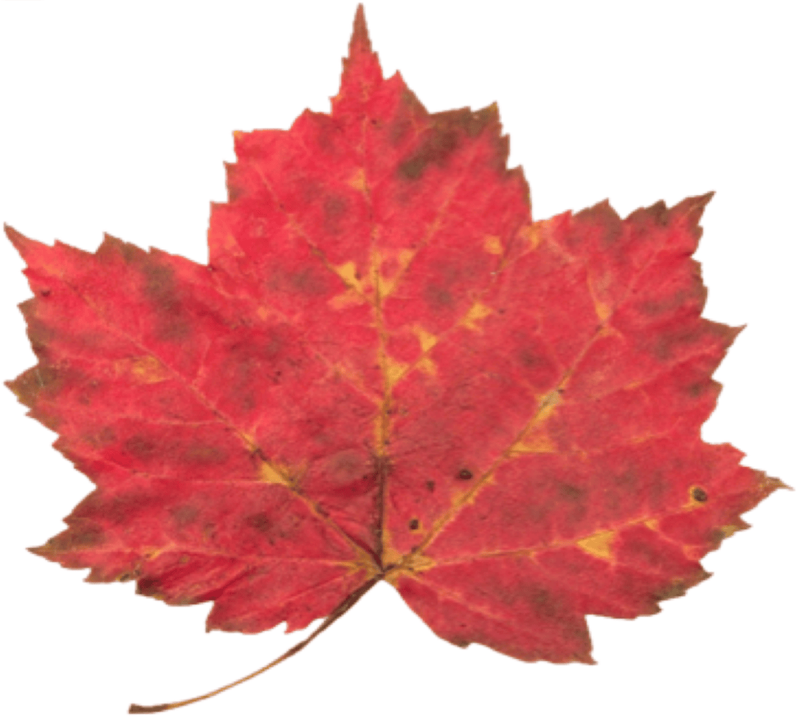
The Overlay effect changes the color of an object by putting a new color on top of the object. Transparent areas of the object remain transparent. If you make the overlay color semitransparent, the original object's colors will be seen through. This effect is often used with raster images that have a transparent background.

The Appearance panel is used to add and adjust the effects.
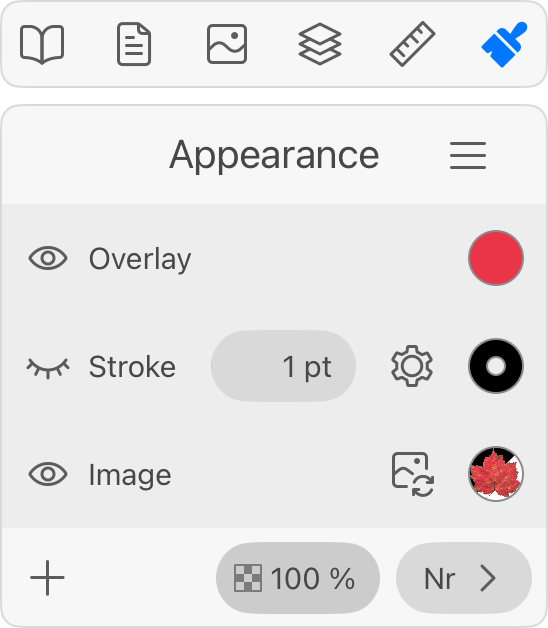
In order to add an Overlay effect, tap the plus button in the Appearance panel. Select Overlay. Then adjust the color of the effect. The color button opens the Color panel.
To delete an Overlay effect, slide over it in the Appearance panel to the left. Then tap the trash bin icon.
The Overlay effect creates raster graphics. If you plan to export a high-resolution image, or, if the exported image might be enlarged in other software, make sure that your export settings are sufficient for that.