
Layout
The Grid
The grid can help you place objects on a page. It can also be useful when you resize an object by dragging handles the of object's frame instead of inputting exact dimensions.
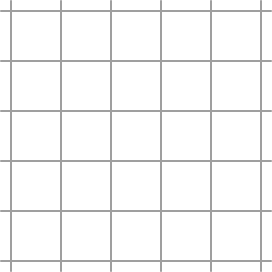
To show or hide the grid, tap the respective eye icon in the Document panel.
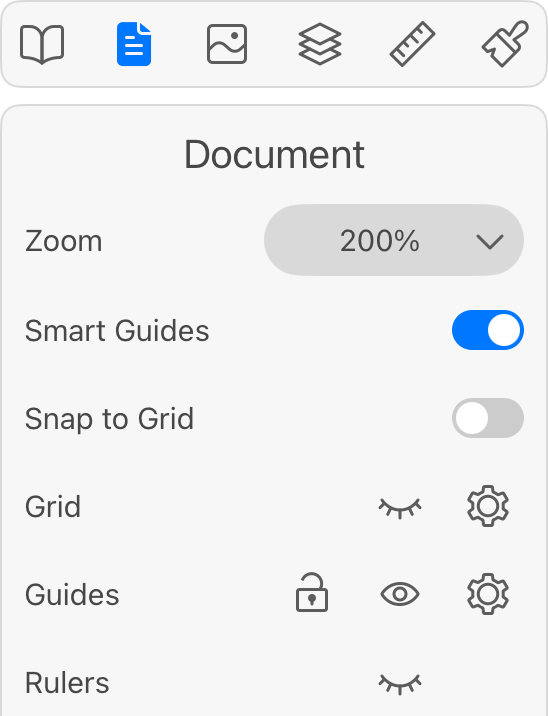
To make an object or its part snap to the grid, activate the Snap to Grid option.
Setting Up the Grid
In order to set up the grid in the current document, tap the respective gear icon in the Document panel.
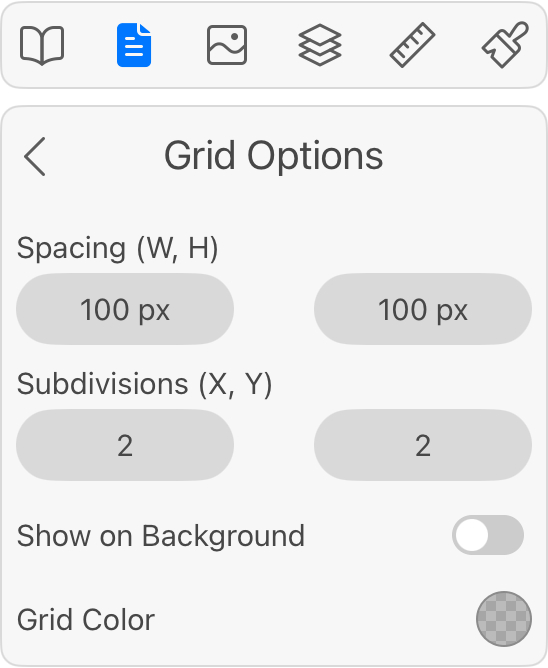
Spacing: Sets the distance between the grid lines.
Subdivisions: Divides each grid cell into several parts. For example, type "3" in the edit box to split cells into three parts.
Show on Background: Defines whether the grid should be displayed in front or behind everything else on the canvas.
Grid Color: Defines the color of the grid. Notice that the Grid Color in the Preferences specifies the default color for all new documents. You can use the Grid Options panel to change the grid color in a particular document.