
Working with Documents
Custom Document Templates
You can save your own documents to the Template Gallery. Then you will be able to create new documents from those templates.
Convert and Import Templates
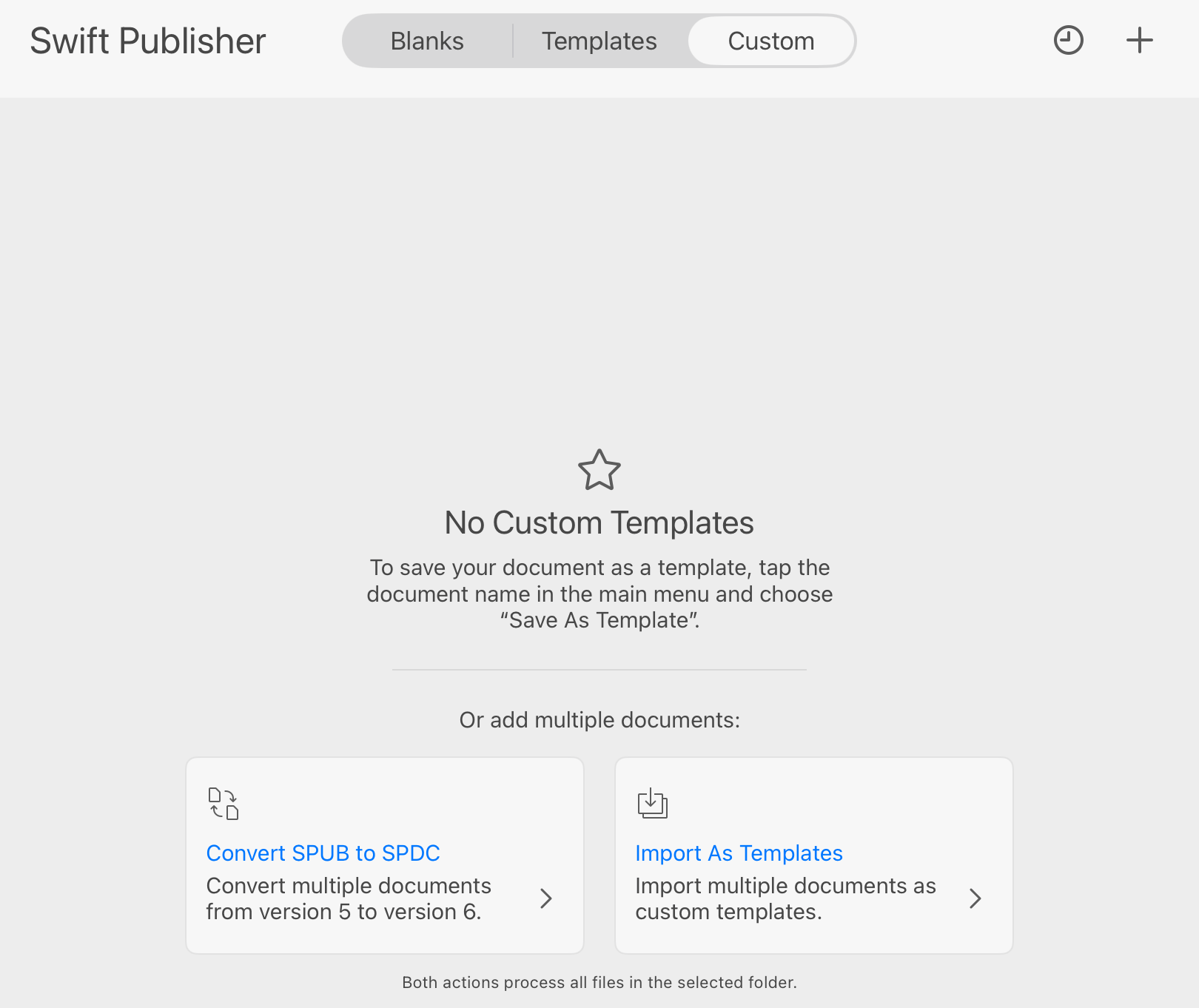
As long as the gallery contains no custom templates, it displays two buttons that can help you import templates created in Swift Publisher 5.
The Convert SPUB to SPDC button converts documents saved in version 5 to version 6. Converted documents will be placed in a new subfolder.
The Import as Templates button imports all *.spdc files from a folder you choose into the Custom section of the Template Gallery.
As soon as you add templates to the gallery, the two buttons will be replaced with design thumbnails. Then you can convert documents and import templates using the respective commands in the sandwich menu of the file browser.
Add a Custom Template
To save the currently open document as a template, tap the menu button  in the main window. In the main menu, tap the document name which is the second item ("Poster" in the image below).
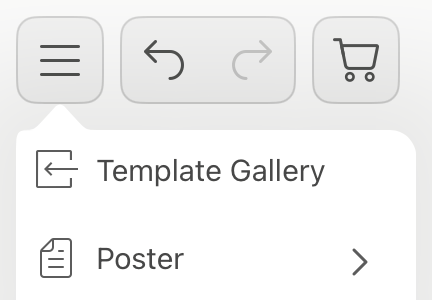
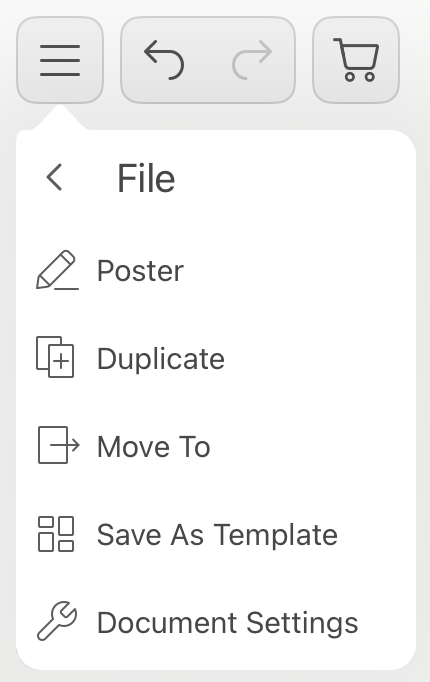
In the File menu that will open up, choose Save as Template.
Managing Custom Templates
These actions on custom templates are supported:
- Rename
- Duplicate
- Share
- Delete
To bring up a popup menu with these actions, long-press the template's thumbnail.
In order to apply an action (except for Rename) to multiple templates, tap the Select button and choose templates you want to work with.