
Color, Gradient and Image Fill
Selecting Colors
There are several ways to select a color for Stroke, Fill or some other effect.
Using the Color Panel
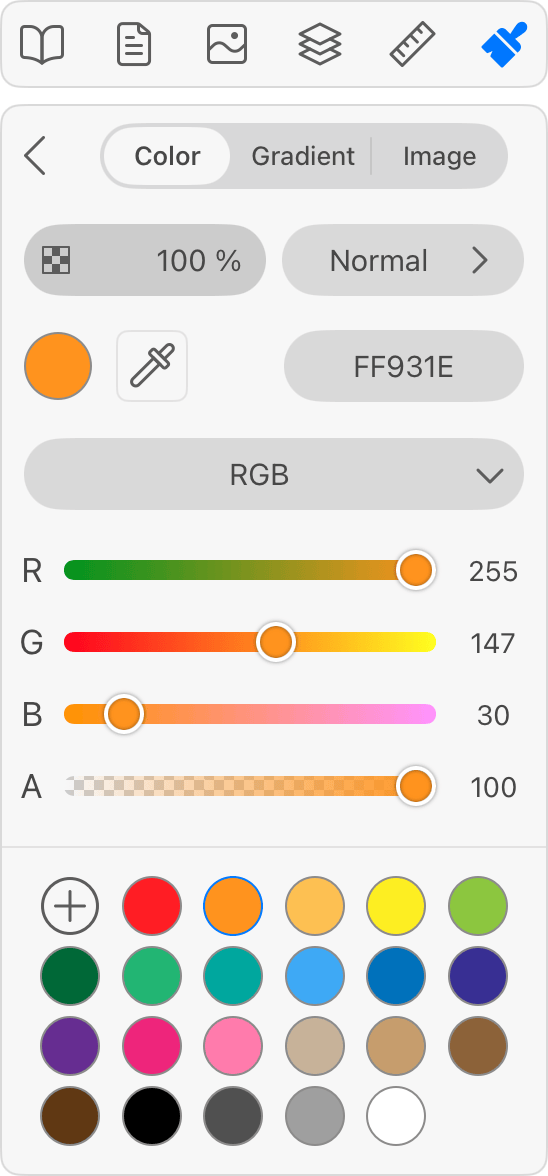
Select a Color Directly
In order to select a color directly, select a color model, such as RGB or CMYK. Then enter the numeric values for color components, for instance, red, green and blue. Use either the sliders or text fields. Otherwise, select a color using a Color Wheel. You can also set a color in the hex format.
If necessary, adjust the opacity.
Using Swatches
If a color or gradient that you need is present in the library of swatches, tap the corresponding swatch.
Using the Eyedropper
You can copy a color from almost any spot visible on the screen. To do this, tap the eyedropper icon in the Color panel. The app will show a magnification glass. You should drag it in order to place its center over the color you want to choose.
Copying Object's Style
You can copy the style of another object.
Note that a style is not only a single color. By copying a style, you can copy a combination of the stroke and fill colors, and also effects like shadow depending on what has been applied to the source object.
To copy an object's style:
- Select the source object.
- Choose Copy Style from the menu
 of the Appearance panel.
- Select the destination object.
- Choose Paste Style in the menu of the Appearance panel.