
Exporting and Printing
Printing Settings
The app has different printing settings for different types of documents.
Multipage Documents
These documents are usually printed on plain paper. The New Document dialog lists them as: Desktop Publishing (one or multiple pages), Social Media and Web, and Devices.
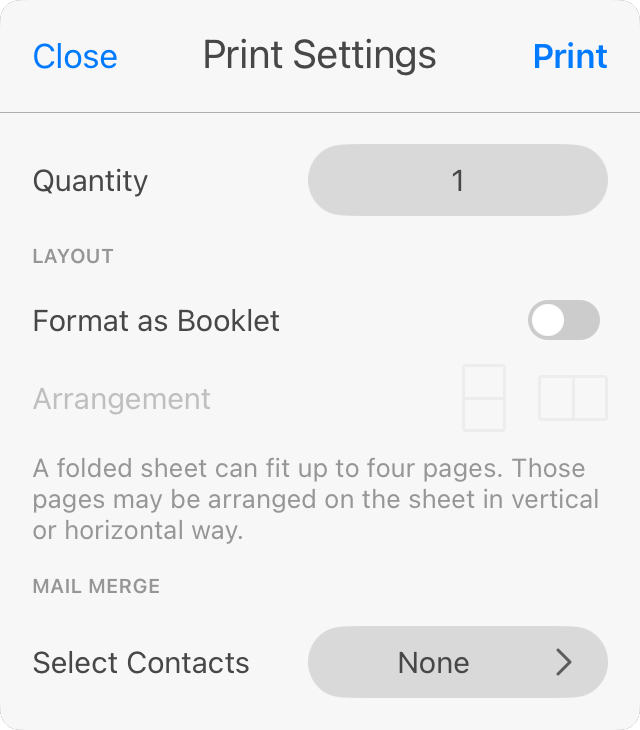
The Quantity defines the number of copies. In case you need more than one copy, set that in this panel or in the system Print dialog. If you input values in both places, the values will multiply.
Select Scale to fit paper size if the Paper Size in the Print dialog differs from the Page Size in the Document tab of the Inspector. This option is deactivated for other document types.
Enable Format as booklet if you want to print a two-fold document. Then choose the horizontal or vertical booklet page orientation.
The Select Contacts button opens contacts stored in the Contacts app. Information from the selected contacts will be automatically inserted into contact fields in your document if the document contains such fields. If you select two and more contacts, the app will print extra copies of your document (one copy per contact).
Labels and Business Cards
Documents of this type appear in the New Document dialog as Business Cards and Labels. They are typically printed on specialized paper with separable labels or business cards. One sheet of paper normally holds several labels or cards.
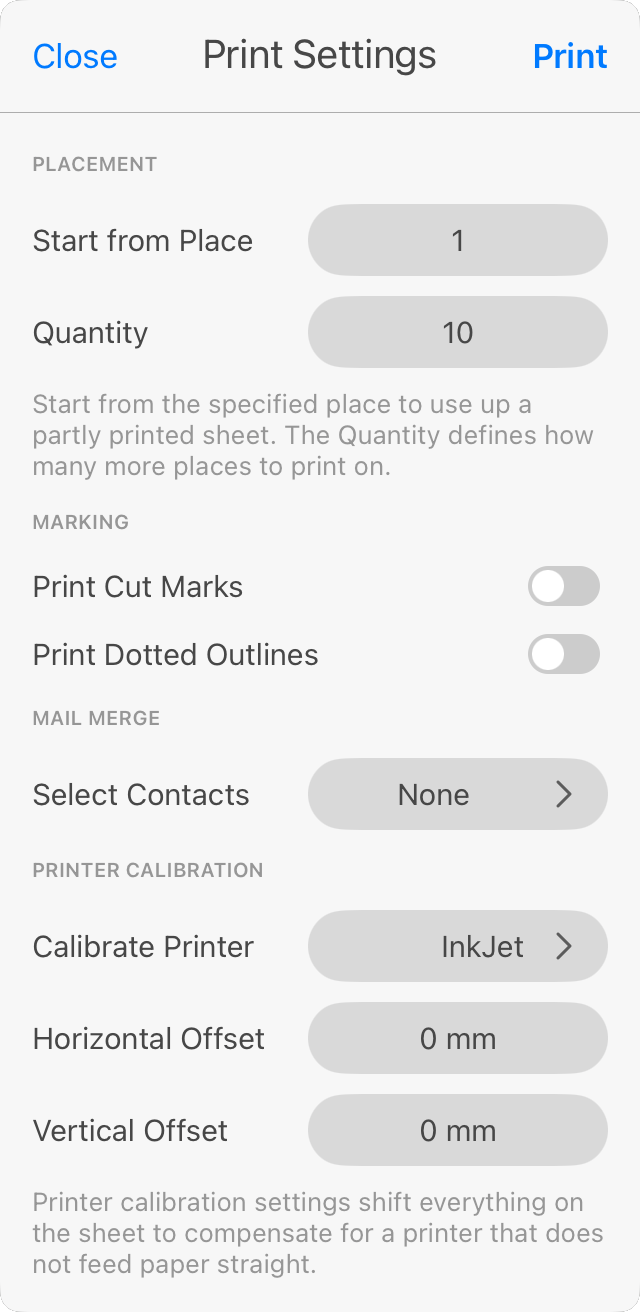
Start from Place lets you start printing from a certain position on the page to make use of a partially used sheet. For example, to skip the first 3 labels or cards, type "4" here.
Quantity defines the number of labels or cards to be printed. If you set a number that is greater than places on one paper sheet, than a second sheet will be added. Don't confuse the Quantity (of cards) wtih Copies in the system Print dialog. N copies just means that a print job set up in this panel will be repeated N times.
The Print Cut Marks and Print Dotted Outlines options let you print on plain paper and then trim labels or cards manually.
The Select Contacts button opens contacts stored in the Contacts app. Information from the selected contacts will be automatically inserted into contact fields in your document if the document contains such fields. If you select two and more contacts, the app will print extra copies of your document (one copy per contact).
The Printer Calibration let you input the Horizontal Offset and Vertical Offset values when a business card or label design was printed off center. You should input the values together with choosing the printer in the Calibrate Printer popup menu.
Discs and Media
Documents of this type appear in the New Document dialog as Discs and Media.
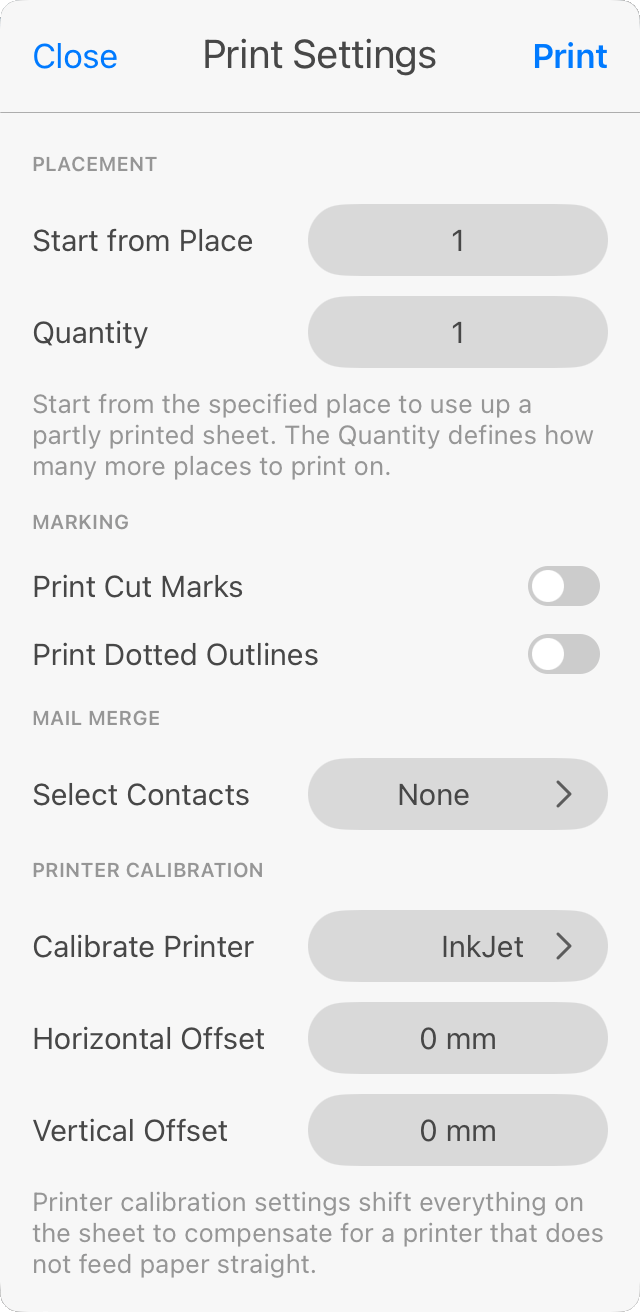
Start from Place lets you start printing from a certain position on the page to make use of a partially used sheet. For example, to skip the first 3 elements, type "4" here.
Quantity defines the number of elements to be printed. If you set a number that is greater than places on one paper sheet, than a second sheet will be added. Don't confuse the Quantity (of cards) wtih Copies in the system Print dialog. N copies just means that a print job set up in this panel will be repeated N times.
The Print Cut Marks and Print Dotted Outlines options let you print on plain paper and then trim printed designs manually.
The Select Contacts button opens contacts stored in the Contacts app. Information from the selected contacts will be automatically inserted into contact fields in your document if the document contains such fields. If you select two and more contacts, the app will print extra copies of your document (one copy per contact).
The Printer Calibration let you input the Horizontal Offset and Vertical Offset values when a design was printed off center. You should input the values together with choosing the printer in the Calibrate Printer popup menu.
Envelopes and Postcards
Documents of this type appear in the New Document dialog as Cards and Envelopes.
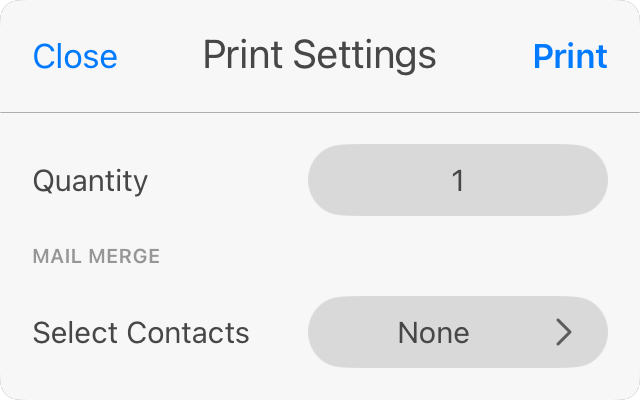
Quantity defines the number of elements to be printed. If you set a number that is greater than places on one paper sheet, than a second sheet will be added. Don't confuse the Quantity (of cards) wtih Copies in the system Print dialog. N copies just means that a print job set up in this panel will be repeated N times.
The Select Contacts button opens contacts stored in the Contacts app. Information from the selected contacts will be automatically inserted into contact fields in your document if the document contains such fields. If you select two and more contacts, the app will print extra copies of your document (one copy per contact).