
Exporting and Printing
The Export Panel
The Export panel displays settings for different export formats: JPEG, PDF, PNG and TIFF. Some of the settings are shared between the formats.
JPEG
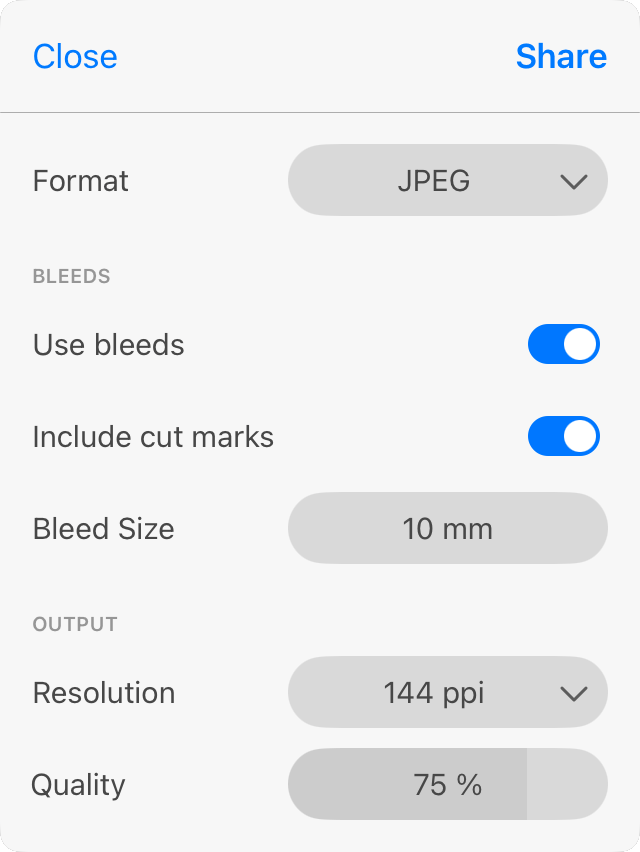
Use bleeds: adds bleeds to the page increasing its size.
Include cut marks: adds cut marks that separate the page area from the bleeds.
Bleed size: defines the width of bleeds.
Resolution: is the resolution of the output image. You can select one of the predefined options.
Quality: is the output image quality. By decreasing the value, you can have a smaller file, but the image will preserve less details, and it may have artifacts.
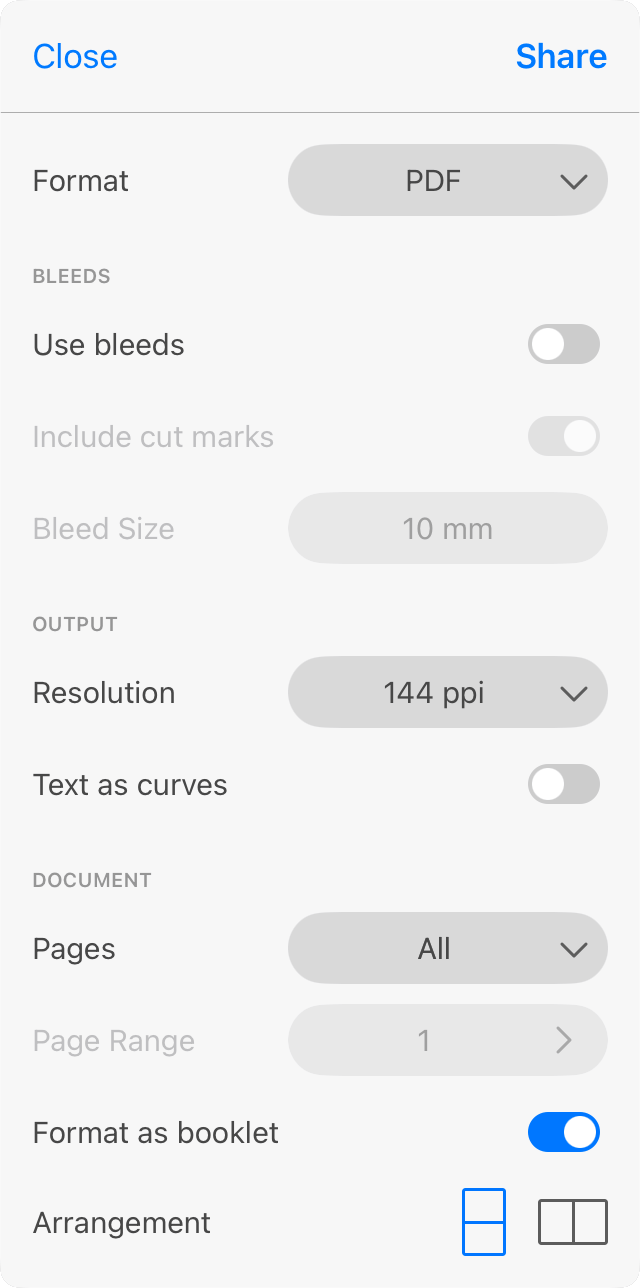
Use bleeds: adds bleeds to the page increasing its size.
Include cut marks: adds cut marks that separate the page area from the bleeds.
Bleed size: defines the width of bleeds.
Resolution: is the resolution of raster elements of the design. This option doesn't affect vector elements. You can select one of the predefined options.
Text as curves: turns all text to a vector graphics. Setting this option may help you avoid problems with fonts, or may be needed when you send your PDF to a print shop. Note that enabling this option may increase the size of the exported file.
Pages: lets you export all pages or only pages that are selected in Page Range.
Page Range: defines which of the pages should be exported.
Format as booklet: makes the correct page order for a two-fold document.
Arrangement: specifies if a document will be folded along the short or long side.
PNG
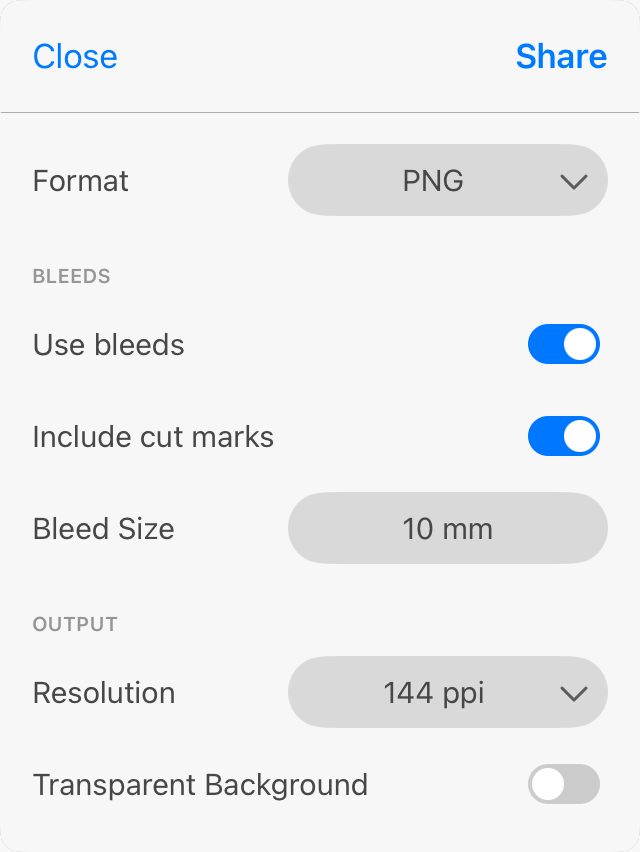
Use bleeds: adds bleeds to the page increasing its size.
Include cut marks: adds cut marks that separate the page area from the bleeds.
Bleed size: defines the width of bleeds.
Resolution: is the resolution of the output image. You can select one of the predefined options.
Transparent Background: keeps transparency in areas that contain no visible objects in your design. When this option is turned off, a white background is used to fill such areas.
TIFF
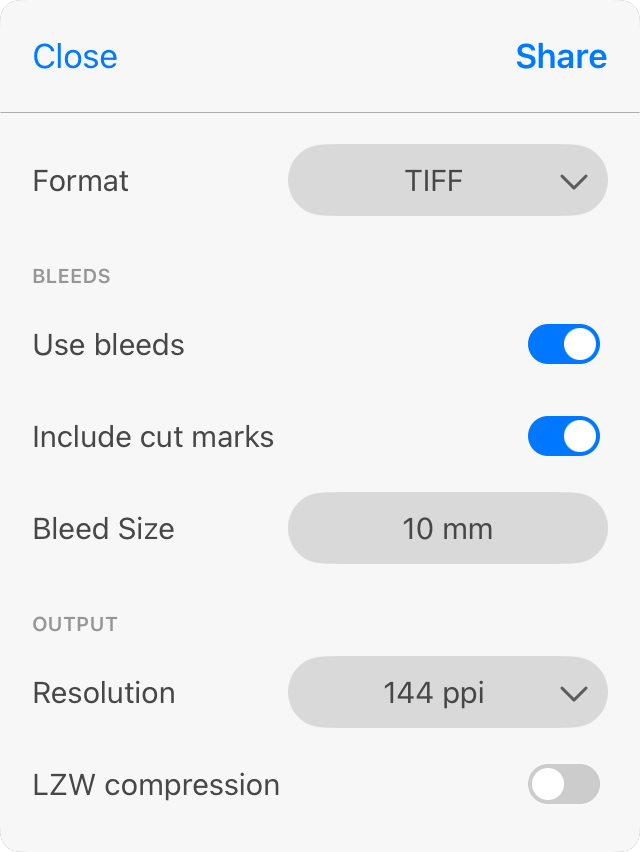
Use bleeds: adds bleeds to the page increasing its size.
Include cut marks: adds cut marks that separate the page area from the bleeds.
Bleed size: defines the width of bleeds.
Resolution: is the resolution of the output image. You can select one of the predefined options.
LZW compression: compresses the TIFF image to reduce the file size.