
Importing
Importing Multipage PDF Files
The app can import multipage PDF files. You can choose to import one, several or all pages.
Importing Some or All Pages
In order to import a PDF file, choose Import > File from the main menu. Then select a PDF file in the file browser.
The app will open the PDF Import dialog where you can select pages. Once done, tap the Import button. Each imported page will take a separate page in your document.
If you use the Import > File menu command while a document is open in the app, the PDF pages will be added to this document. If you open a PDF file with the app, a new document will be created.
The Import PDF Dialog
The dialog helps you select pages that should be imported. The middle of the dialog displays page previews together with page numbers.
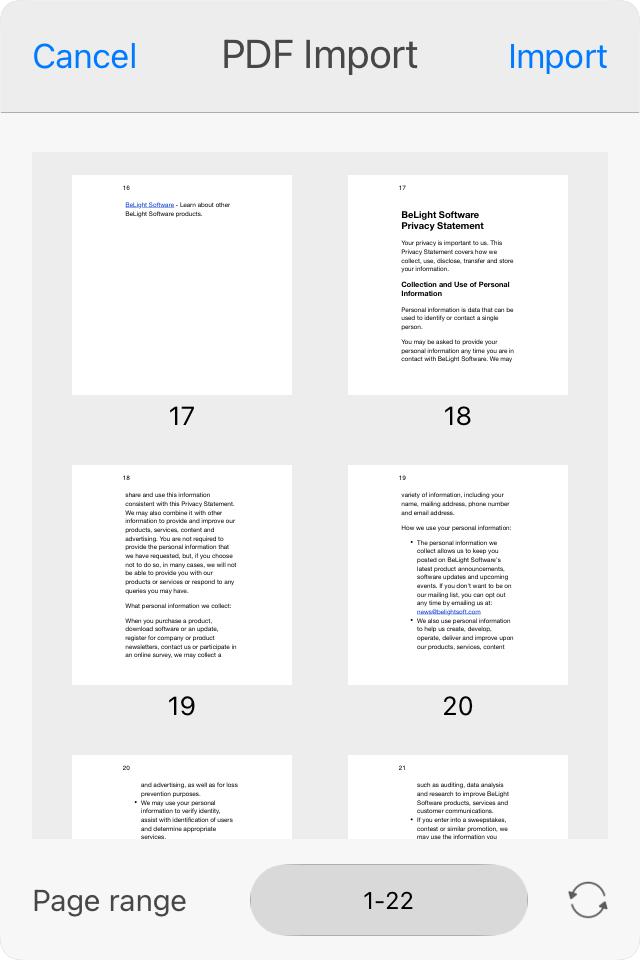
In order to import the entire PDF, keep the default page range. To restore the default range, tap the circular arrow.
To select particular pages, type page numbers into the Page range field. Examples:
- 1,2,4 - page numbers are separated by commas and let you import the listed pages.
- 1-4 - a range of pages is defined by the numbers of the first and last pages in the range with a hyphen between them.
- 1,4-6 - a range and separate page number(s) can be used together.
- 3,2,1 - import the first three pages in the reversed order.