
Workspace and App Interface
The Tools Panel
Tools in the Tools panel are used to select, create and manipulate objects. Some tools have additional options that can be displayed in the Action bar.
To activate a tool, tap its icon in the panel.
Several tools that relate to each other can be grouped together in the panel. A small arrow in the lower right corner of the icon indicates that there are more tools available. For instance, tools that add different shapes share the same button. The button shows the icon of the last used tool. To use this tool again, just tap the button. To activate a different tool from the set, long-press the button until all of the tools in the set are displayed. Then tap the tool you need. To display all of the tools in the set, you can also tap the icon two times.

 - Move Tool: selects, moves and resizes objects
 - Selection Tool: selects and manipulates path elements
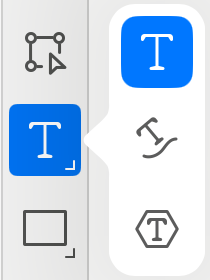
 - Text Tool: adds text boxes and activates the text editing mode
 - Text on Path Tool: places text along a path and activates the text editing mode
 - Text in Shape Tool: adds text inside a shape and activates the text editing mode
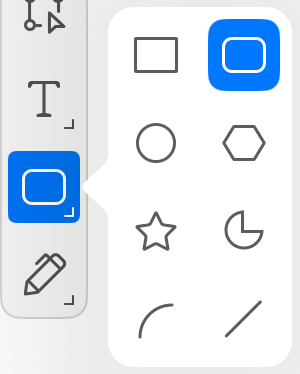
 - Rectangle Tool: creates rectangles
 - Rounded Rectangle Tool: creates rectangles with rounded corners
 - Ellipse Tool: creates ellipses and circles
 - Polygon Tool: creates polygons with a customizable number of sides
 - Star Tool: creates stars with a customizable number of points
 - Circular Sector Tool: creates circular sectors and circular arcs
 - Elliptical Arc Tool: creates elliptical arcs
 - Line Tool: draws straight lines
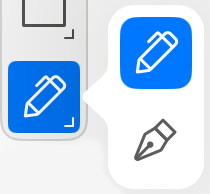
 - Draw Tool: draws freehand lines
 - Pen Tool: creates paths with curves or straight lines
 - Insert: opens a menu with objects that can be added to a document. This is the same set of objects as in Insert of the main menu.
The Tools panel can be displayed in the horizontal mode on iPhone and on iPad in the split mode. In this case, you may need to scroll the panel to reach all of the tools.