
Workspace and App Interface
The Main Window
The main window is where you preview and edit documents.
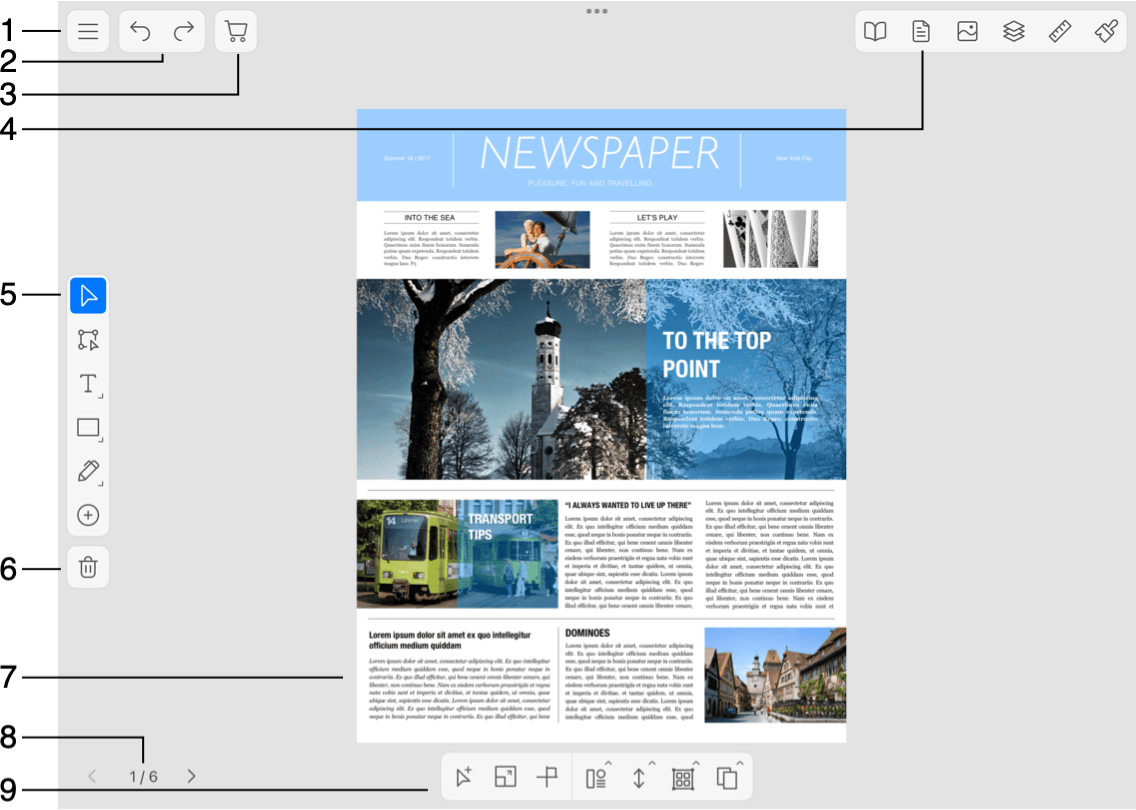
1 - Open the main menu.
2 - The Undo and Redo buttons.
3 - The in-app store.
4 - Buttons that open the Pages, Document, Libraries, Layers, Geometry and Appearance panels.
5 - The Tools Panel contains tools for creating and editing objects.
6 - The Delete button.
7 - A page, label or other media where you edit your design.
8 - The current page number and total number of pages. Tap one of the arrows to display the previous or next page. Tap on the page number to enter a new one.
9 - The Action bar can display extra options depending on the currently activated tool.
Zooming In and Out
In order to zoom in or out, pinch with two fingers. A small panel at the top of the screen will be displaying the scale while you are changing it.
A list of gestures for zooming as well as other actions can be found by choosing Help > View Gestures in the menu.
The default zoom for new documents can be set in the App Settings.
Rotating the Canvas
To rotate the canvas together with your design on it, use the two-finger gesture turning one finger around another. The canvas snaps to ±90 and 180 degree angles.
To be able to rotate the canvas, make sure that the Allow canvas rotation option is enabled in the App Settings.
Position the Page within the View Area
In order to scroll the page on the canvas, drag it with two fingers.
Minimalistic Interface
In order to preview your design with minimum distraction, hide most of the interface elements using the  button in the main menu. Tap on this button in order to restore panels and buttons in the main window. The same can be done by pressing the Tab key on the external keyboard.