
Working with Documents
Document Settings
The Document panel lets you set up your document.
To open the panel, tap the corresponding icon in the main window.
The set of options depends on the document type that you can select as the Category in the New Document dialog. These types of documents have similar settings:
- Desktop Publishing
Social Media and Web
Devices - Discs and Media
- Business Cards
Labels Cards - Envelopes
Desktop Publishing, Social Media and Web
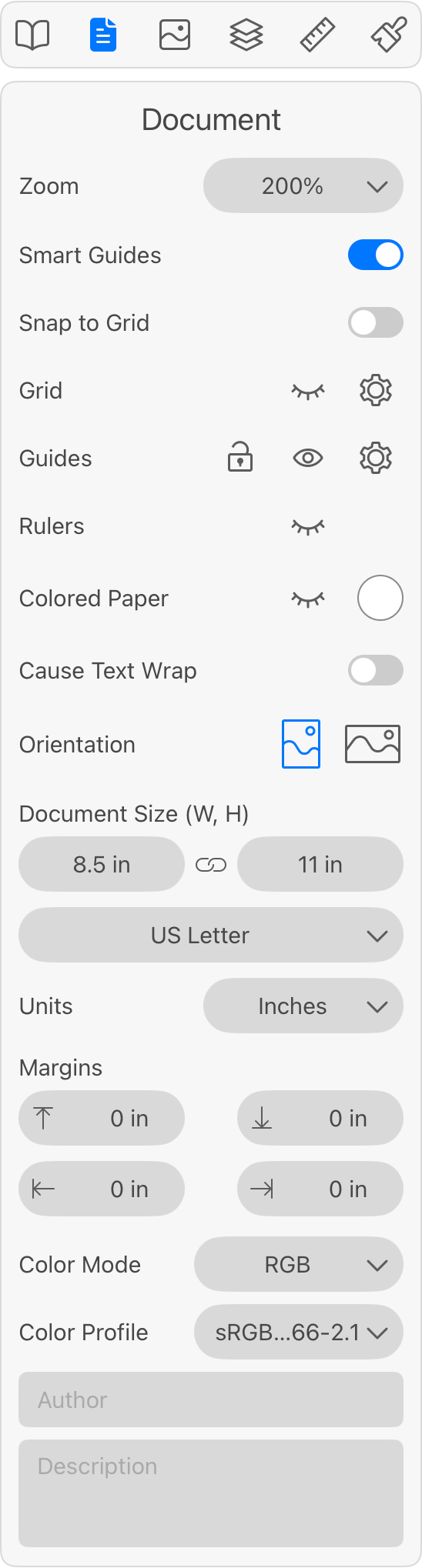
Zoom: Scale the document preview up or down.
Smart Guides: Shows smart guides when you move or resize objects.
Snap to Grid: Allows the app to snap objects to the grid when you move them.
Grid: The eye icon shows or hides the grid. The gear icon opens the Grid Options panel.
Guides: The lock icon locks or unlocks all guides. The eye icon shows or hides all guides. The gear icon opens the Guides panel.
Rulers: The eye icon shows or hides the rulers.
Colored Paper: Pages are white by default. You can change the background color to display how your document may look after printing on colored paper. The selected color will not be printed or exported.
Cause Text Wrap: This option activates text wrapping for the page margins. The Text Wrapping section explains how the text wrapping feature works.
Orientation: Lets you select either vertical or horizontal layout.
Document Size: The page width and height. You can also choose a standard paper format from the popup menu.
Units: Defines the measurement units for the current document.
Margins: The margins let you specify the work area on the page. The margin sizes are the same for all pages in the document, unless you are using master pages.
Color Mode: Lets you choose between the RGB and CMYK color models.
Color Profile: Defines the color profile for the document.
Author and Description: These fields can store information about the document.
Discs and Media
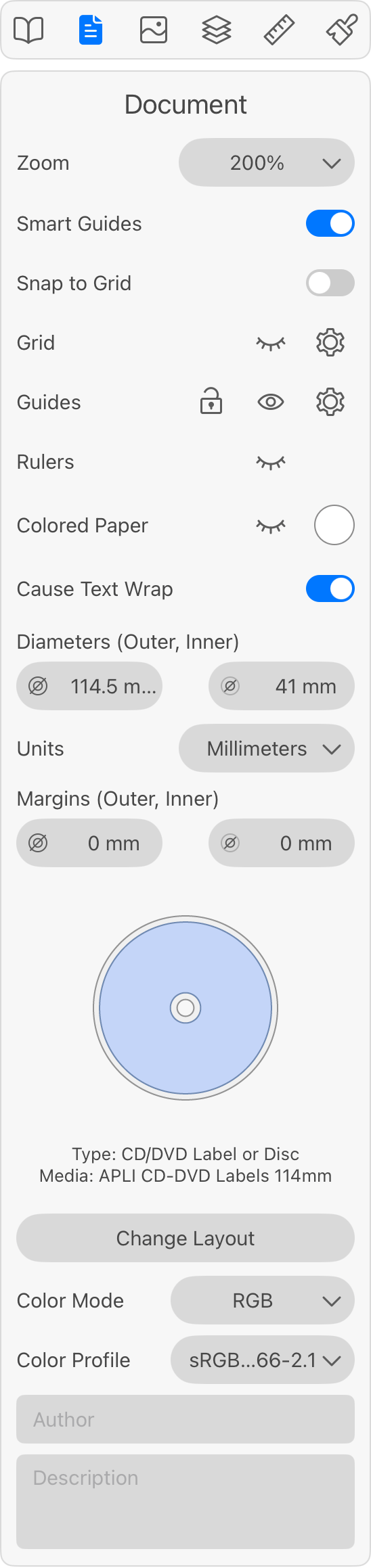
Zoom: Scale the document preview up or down.
Smart Guides: Shows smart guides when you move or resize objects.
Snap to Grid: Allows the app to snap objects to the grid when you move them.
Grid: The eye icon shows or hides the grid. The gear icon opens the Grid Options panel.
Guides: The lock icon locks or unlocks all guides. The eye icon shows or hides all guides. The gear icon opens the Guides panel.
Rulers: The eye icon shows or hides the rulers.
Colored Paper: Discs and paper sheets are white by default. You can change the background color to display how your document may look after printing on colored media. The selected color will not be printed or exported.
Cause Text Wrap: This option activates text wrapping for the disc and page margins. The Text Wrapping section explains how the text wrapping feature works.
Diameters: The inner and outer diameters of a disc.
Units: Defines the measurement units for the current document.
Margins: The margins let you specify the work area on the disc or page.
Change Layout: Brings up the Select Layout dialog. In this dialog, you can select a paper layout or printer tray.
Color Mode: Lets you choose between the RGB and CMYK color models.
Color Profile: Defines the color profile for the document.
Author and Description: These fields can store information about the document.
Business Cards, Labels and Greeting Cards
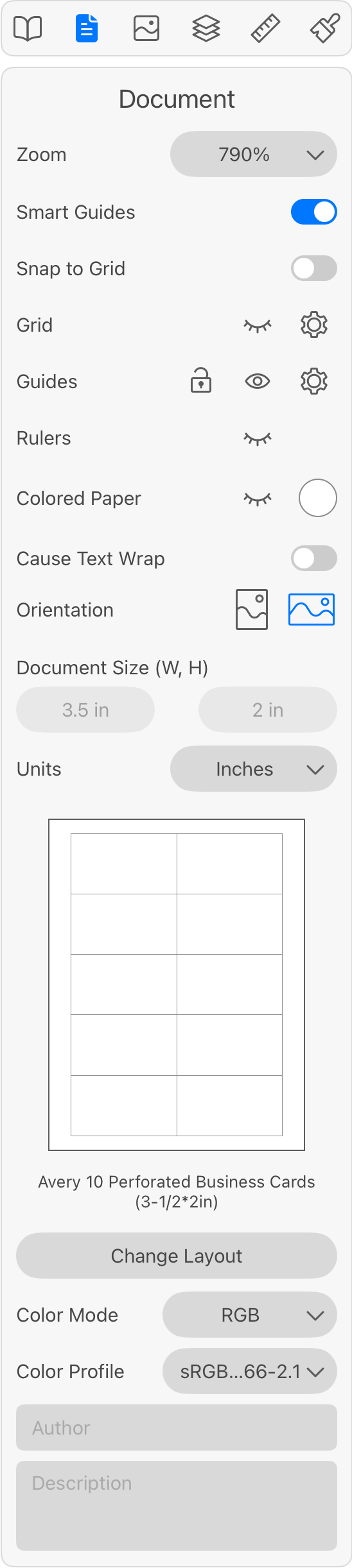
Zoom: Scale the document preview up or down.
Smart Guides: Shows smart guides when you move or resize objects.
Snap to Grid: Allows the app to snap objects to the grid when you move them.
Grid: The eye icon shows or hides the grid. The gear icon opens the Grid Options panel.
Guides: The lock icon locks or unlocks all guides. The eye icon shows or hides all guides. The gear icon opens the Guides panel.
Rulers: The eye icon shows or hides the rulers.
Colored Paper: Paper sheets are white by default. You can change the background color to display how your document may look after printing on colored paper. The selected color will not be printed or exported.
Cause Text Wrap: This option activates text wrapping for the business card edges. The Text Wrapping section explains how the text wrapping feature works.
Orientation: Lets you select either vertical or horizontal layout.
Document Size: The width and height of a business card. These dimensions are defined by the selected paper layout.
Units: Defines the measurement units for the current document.
Change Layout: Brings up the Select Layout dialog. In this dialog, you can select a paper layout.
Color Mode: Lets you choose between the RGB and CMYK color models.
Color Profile: Defines the color profile for the document.
Author and Description: These fields can store information about the document.
Envelopes
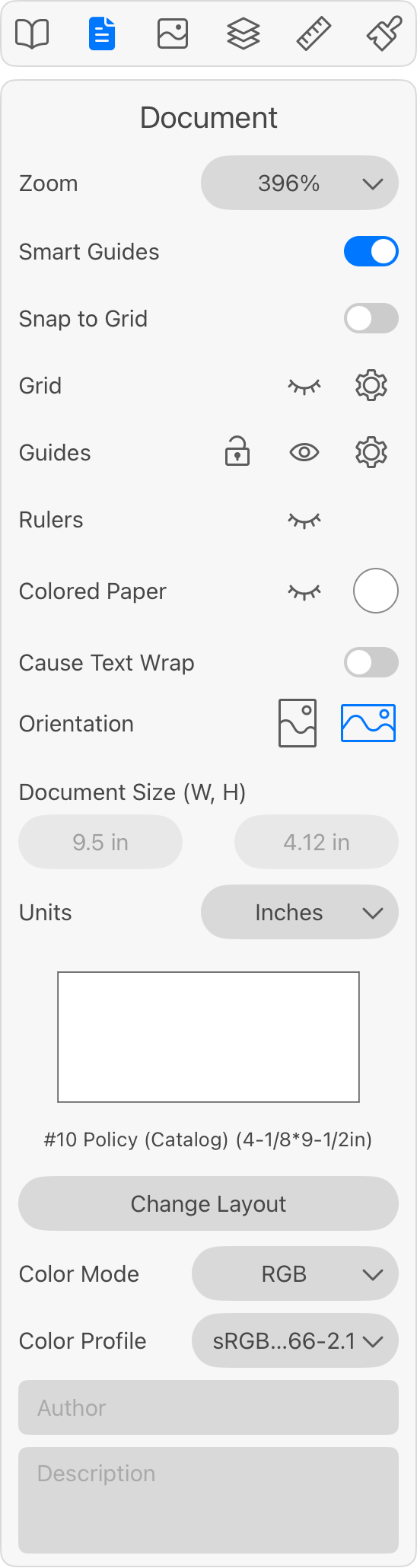
Zoom: Scale the document preview up or down.
Smart Guides: Shows smart guides when you move or resize objects.
Snap to Grid: Allows the app to snap objects to the grid when you move them.
Grid: The eye icon shows or hides the grid. The gear icon opens the Grid Options panel.
Guides: The lock icon locks or unlocks all guides. The eye icon shows or hides all guides. The gear icon opens the Guides panel.
Rulers: The eye icon shows or hides the rulers.
Colored Paper: Envelopes are white by default. You can change the background color to display how your document may look after printing on colored paper. The selected color will not be printed or exported.
Cause Text Wrap: This option activates text wrapping for the envelope edges. The Text Wrapping section explains how the text wrapping feature works.
Orientation: Lets you select either vertical or horizontal layout.
Document Size: The envelope width and height. These dimensions are defined by the selected envelope type.
Units: Defines the measurement units for the current document.
Change Layout: Brings up the Select Layout dialog. In this dialog, you can select an envelope layout.
Color Mode: Lets you choose between the RGB and CMYK color models.
Color Profile: Defines the color profile for the document.
Author and Description: These fields can store information about the document.
Working with the Document File
The commands that operate with the document file are located in the File menu. To open it, tap the menu button  in the main window.
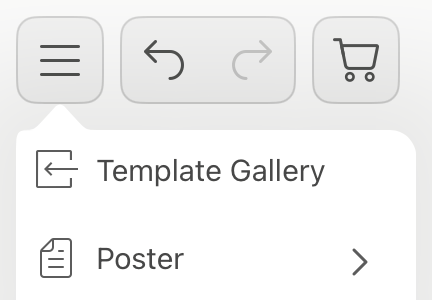
In the main menu, tap the file name which is the second item ("Poster" in the image below).
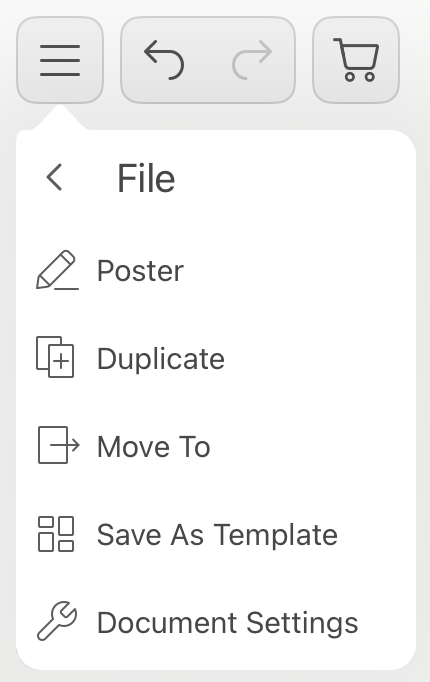
To rename the document file, tap the upper menu item which displays the current file name.
The Duplicate command duplicates the document file.
The Move To command can move the document to another folder.
Using the Save as Template command, you can save a copy of the current document to the Custom section of the Template Gallery.
The Document Settings command brings up the document settings.